Showing posts with label Google crome. Show all posts
Top 50 Free Proxy Sites – Free Proxy Server List 2015
Top 50 Free Proxy Sites – Free Proxy Server List 2015 – Free proxies
works as a life saver when a particular site is banned in your region by
your ISP,School,College,Goverment etc. Sometimes website owner bans
them self in a particular region. SO in this case proxy helps a
lot.Using proxy sites are very easy to use them. Just go to any popular
proxy website and enter URL of your desired webpage or website and
through proxy servers, you’ll be able to explore it without any problem
yeah thats it. However, beware! Not all proxy websites are safe. Many of
them contains malware, viruses, many proxy websites can steal your
private information.


So foy your ease we are providing you 50 free proxy sites you can use
them. And enjoy your privacy.
Yes this is really very easy to use.
- HideMyAss - https://www.hidemyass.com/proxy
- Proxify – http://proxify.com/p/
- Ninja Clock – http://ninjacloak.com/
- AnonyMouse - http://anonymouse.org/
- AnonyMizer – http://www.anonymizer.com/
- kProxy – http://www.kproxy.com/
- BlewPass - http://www.blewpass.com/
- Zfreez – http://zendproxy.com/
- Vobas – http://www.vobas.com/
- Don’t Filter – http://www.dontfilter.us/
- Vtunnel – http://vtunnel.com/
- Proxy.org – http://proxy.org/
- New Ip Now – http://newipnow.com/
- WebProxy.net – http://webproxy.net/
- 4everproxy - http://4everproxy.com/
- Unblock My Web – http://www.unblockmyweb.com/
- YouTube Unblock Proxy – http://youtubeunblockproxy.com
- Working Proxy – http://workingproxy.net
- Free Open Proxy – http://freeopenproxy.com
- Proxy 2014 – http://proxy2014.net
- Unblock YouTube Free – http://unblockyoutubefree.net
- Free YouTube – http://freeyoutube.net
- HideOnline Proxy – http://freeyoutube.net
- Rapid Proxy – http://rapidproxy.us
- Unblock YouTube Beat School – http://unblockyoutubeatschool.com
- Hiding Your Info – http://hidingyour.info
- Unblocker – http://unblocker.us
- Fast USA Proxy – http://fastusaproxy.com
- YouTube Free Proxy – http://youtubefreeproxy.net
- Proxyo – http://proxyo.info
- Quickproxy – http://quickproxy.co.uk
- Defilter – http://defilter.us
- Free Proxy Server – http://freeproxyserver.uk
- Free YouProxyTube – http://freeyouproxytube.com
- The Best Proxy – http://thebestproxy.info
- EXCS – http://ecxs.asia
- Just Proxy – http://justproxy.co.uk
- Proxy-2014 – http://proxy-2014.com
- VPN Browse – http://vpnbrowse.com
- ProxyOne – https://proxyone.net
- Web Proxy Free – http://webproxyfree.net
- Can’t Block This – http://cantblockthis.org
- Hide The Internet – http://hidetheinternet.com
- Greatest Free Proxy – http://greatestfreeproxy.com
- Proxay – http://www.proxay.co.uk
- ViewTube – http://viewyoutube.net
- PRO Unblock – http://pro-unblock.com
- HideMyTraxProxy – https://hidemytraxproxy.ca/
- Working Proxy – http://workingproxy.net
- Star Doll Proxy – http://stardollproxy.com
- HideMyAss UK – http://hidemyass.co.uk
Methods to block websites on your computer
Blocking any website on your computer becomes necessary when you really want to make it your personal computer. Many times someone from your family or some irritating friend comes to you and want to use your computer to surf internet and then he start viewing videos on youtube or start chatting on Facebook regardless of whether you are liking it or not but you cant even ask them to leave.

Of course you never want that anyone use your computer for long time and
keep using your internet while you just sit aside them to see what they
are doing. You can simply block the sites and prevent them from opening
in your system to get rid of this problem.

How to Block Websites on your Computer
There are certain Tricks to block a website from opening on your system :
Method 1 : Using Windows host file
For this method , you don’t require any additional software
to be installed on your computer. All you need is a little bit
knowledge and some basic file editing capability using notepad. Windows
has this host file to map the ip addresses and host names of the host sites to your computer.
By using this trick you can make your computer to redirect again to your local machine instead of opening that host site. So for blocking any website using windows host file you need to follow some steps as given below :
By using this trick you can make your computer to redirect again to your local machine instead of opening that host site. So for blocking any website using windows host file you need to follow some steps as given below :
Open “C:\Windows\System32\drivers\etc” in the Windows search bar or navigate to the folder by clicking your way through Windows Explorer.
Step 2 :
Now after reaching to this path you will see a file named Host. Right click on that file and click on open with notepad.
Step 3 :
In Notepad, you will see several lines of text used for
mapping purposes. Go to the last line of text (it should say something
regarding a local host), now press enter to move the cursor to the end
of the file then type “127.0.0.1″ (without codes)and press the spacebar.
Step 4 :
Now, type the specified address of the website you wish to
block on the same line. For example, type “127.0.0.1 www.reddit.com” ,
“127.0.0.1 www.facebook.com” to block all these sites.

Step 5 :
Now Save this file and ignore if you receive any messages showing you warning about this modifications.
Step 6 :
Go to your browser and verify that the site you want to block isn’t opening anymore.
Method 2 : Using control Panel
If you don’t wish to block sites using this host file or
there is some problem in modifying that file , so you can do the same
thing using another default function of windows i.e. Control Panel
Parental Control.
For doing this , just follow a few steps given below and you are done :
Step 1 :
Click on start button > Go to control panel > User accounts and Family safety > Set up parental control for any user.
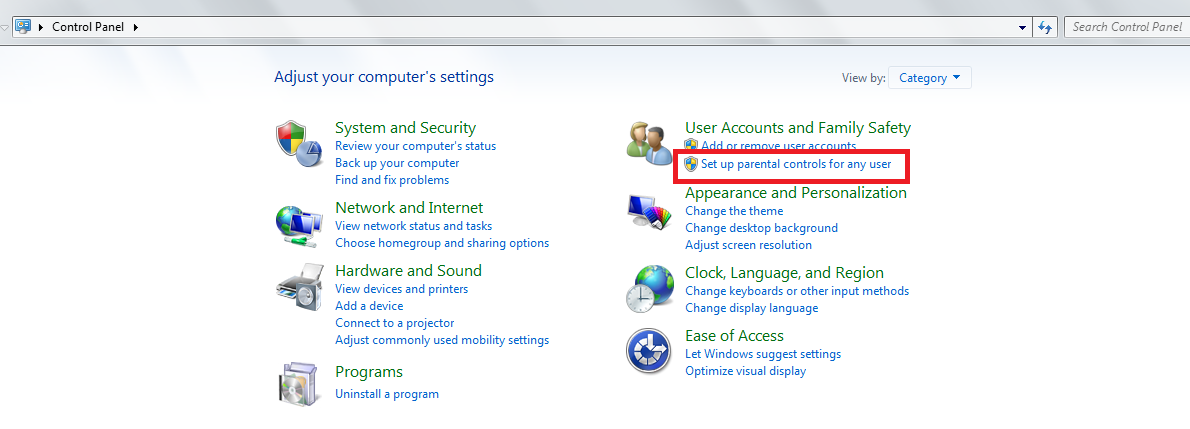
List of all the users in your system will be displayed .
Step 2 :
Now select the account for which you want to set the web filter and then under parental controls , click ON.
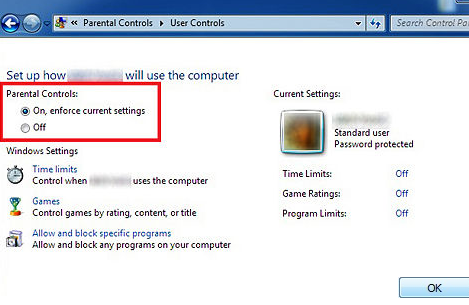
Step 3 : Click on web filter.
Step 4 : Click on Block some websites or contents .
Step 5 : Click on Edit the allow and block list.
Step 6 : In the Website address box, type the address for the website that you want to allow or block, and then click Allow or Block.
These two are the Easy and working Methods to Block websites on your Computer
Google Chrome Keyboard Shortcuts For Fast Browsing
.jpg)
Google Chrome was launched by Google in year 2008.Now it has become one of the most popular browser for internet surfing.Google chrome has achieved all this because of its awesome features like fast start up, fast browsing, simple interface,google extensions and many others.
In my this post I will share some keyboard shortcuts that can be very useful.There are a bunch of keyboard shortcuts you can use to get around faster.
SHORTCUT KEYS
1.New Window: Ctrl+N
2.New Incognito Window: Ctrl+Shift+N
3.New Tab: Ctrl+T
4.Close Tab: Ctrl+W
5.Close Window: Ctrl+Shift+W
6.Add to Bookmarks: Ctrl+D
7.Show/Hide Bookmarks Bar: Ctrl+Shift+B
8.Downloads: Ctrl+J
9.History: Ctrl+H
10.Open link in new tab: Ctrl+Click
11.Open last closed tab: Ctrl+Shift+T
12.Returns the tab to its original position: Press Esc while dragging a tab
13.Switches to the tab at the specified Ctrl+1 through Ctrl+8
position number on the tab strip:
14.Switches to the last tab: Ctrl+9
15.Switches to the next tab: Ctrl+Tab or Ctrl+PgDown
16.Switches to the previous tab: Ctrl+Shift+Tab or Ctrl+PgUp
17. Closes the current window: Alt+F4
18.Closes the current tab or pop-up: Ctrl+W or Ctrl+F4
I’m sure there are times when you wish the computer wasn’t keeping a track of
your browsing history. Buying someone’s birthday present perhaps, or logging
on to an Internet banking site. Whatever the case, in these situations you would usually have to go into your browsing history and delete any reference to the pages.
Thankfully, Google Chrome saves all that hassle with its Incognito mode. You can create a new Incognito window by clicking on the wrench icon and then “New Incognito Window”, or by using the corresponding keyboard shortcut (see below). This will open a new window which will either be blue or a darker shade of the window color (depending on your operating system and/ or Chrome theme) and will have a shady-looking spy icon in the top right hand corner of the window.
So what does Incognito mode do? Essentially, Incognito mode lets you browse the Internet just like normal. However, unlike in a normal window, activity from the Incognito mode simply isn’t logged - no record is kept on your computer whatsoever. That goes for history, searches and downloads; of course, if you download something you’ll keep the file,
but there’ll be no record of you downloading it in Google Chrome.As a security measure, going Incognito doesn’t access your saved passwords or logins.
MOUSE SHORTCUTS:
There are really only two mouse shortcuts, but they still have the potential to save you a lot of time. They will also work with a number of other browsers, so they’re good to learn.
These shortcuts rely on your mouse’s middle button; for most mice, this means clicking down on the scroll wheel. Ifyou’re using a track pad or (for Mac users) a Mighty/Magic Mouse, you’re out of luck.
To open a link in a new tab, you can middle-click on the link. To close a tab quickly, you can middle-click on it. That’s it.
Tag :
Google crome,
Study
Best Websites to customize your facebook timeline cover photo
Now a days its hard to find a person who is not on facebook. New creative ways of Changing the look of timeline is at its peak. Some online tools have been created that lets you to automatically generate a Cool Cover for your new profile. These generated covers fit perfectly in your timeline with proper width and height dimensions.
I am listing below 4 great website tools that will help you make beautiful Cover photos for your FB Profiles. Lets check them out.
1.FB Cover Pix:
2.MyFBCovers:
3.TheSiteCanvas:
.4.Facebook Profile Covers:
I hope you find these tools helpful in branding and personalizing your timeline layouts.
I am listing below 4 great website tools that will help you make beautiful Cover photos for your FB Profiles. Lets check them out.
FB Cover Pix is created exclusively for uploading, exploring, and sharing cover photos that can be used on Facebook's new Timeline profile design. It offers a large gallery of downloadable images which you can upload to Facebook and add them as your cover pages.
MyFBCovers is an interesting site that does not only allow you to create a Facebook Cover but you can also share your personalized cover with myFBcovers members and can expect to win a cash prize up to $50 per week and $100 per month if your cover gets the most downloads. You can also take inspiration from thousands of cool designed covers and can see which colors and design is downloaded the most.It allows you to crop and adjust your cover size. You can also add effects like Polaroid and panorama. It has all possible Cover categories like Abstract, nature, celebrities, holidays and much more!
It is my favorite because it lets you convert your simple Facebook Name into a beautiful Movie like Title Design. You can select which design would you like for your name or can you can even choose your photos to give them a unique look and pattern. Do try it out!
Facebook Profile Covers also lets you choose a Design cover for yourself out of 1000 available profile covers. It is pretty much similar to myFBcovers but it does not offer any cover Contest. You can only create and download your designs but can not make Money online with your covers. It is still worth try due to its beautiful colors and variations. It though contains a watermark on all designs.
I hope you find these tools helpful in branding and personalizing your timeline layouts.
Tag :
Facebook,
Google crome
Trick on How To Enable Right Click on Websites
You probably may have come across some websites that does not allow you to copy any content from there websites by blocking right click.When you press right click on these websites either you will get a prompt with some message or nothing will happen.
Sometimes this is very annoying as you may need that content for your college project or some other urgent purpose.There are several workarounds to bypass this.
I will tell you the best and the most simple trick.You don’t require any software or add on for this trick.Website that block the right click do it using a javascript code.If you block javascript code in your browser then your right click cannot be blocked.
How To Enable Right Click on Websites:
Sometimes this is very annoying as you may need that content for your college project or some other urgent purpose.There are several workarounds to bypass this.
I will tell you the best and the most simple trick.You don’t require any software or add on for this trick.Website that block the right click do it using a javascript code.If you block javascript code in your browser then your right click cannot be blocked.
How To Enable Right Click on Websites:
If you are Using Internet Explorer Browser
- Goto Tools>Internet options>Security
- Now Click on Custom Level
- Now find Scripting Section it will be around the end.
- Now disable Active Scripting.This will disable JavaScript and vbscript in your browser.
- Click on OK.
- Now restart your browser
- Go to Tools>Options>Content
- Uncheck the box Enable JavaScript
- Click Ok
- Open the website that have blocked your right click.
- Click on the Wrench Icon on the top right side on your browser.
- Click on Options
- Now goto Under the Hood tab
- Click on Content Settings and then on JavaScript
- Disable java script and open the website.
Tag :
Google crome,
Hacking
How to apply password-protection to google chrome
Google Chrome is one of the most popular web browsers for Windows. However it doesn’t have a master password feature. It means all of your passwords, credit card number, web logins are open for anybody who uses your PC.
Here you will find out how to protect your Google Chrome with a master password and strong encryption.
Actually it is Google chrome extension and you need to install it on your Google chrome browser to use it.
This plugin is necessary in order to protect your browser from use by unauthorized persons.


WARNING! Do not lose or forget your password! "Remind" isn't work! You'll have to reinstall your browser! - See more at: http://www.superpctricks.com/2012/02/how-to-apply-password-protection-to.html#sthash.v3E9HHFU.dpuf
Here you will find out how to protect your Google Chrome with a master password and strong encryption.
Actually it is Google chrome extension and you need to install it on your Google chrome browser to use it.
This plugin is necessary in order to protect your browser from use by unauthorized persons.
Each time you start the browser, you need to fill the password.If wrong password is entered then the browser immediately closes.
In order to install this chrome extension visit this link-click here .
- After clicking on above link chrome web store will open in a new tab.On the top right side click on Add to Chrome button and extension will install in just few seconds.

- After installing go to settings>options>Extensions and click on options under Simple startup password Extension.
- Set your desired password and you are done.Now every time you start your browser it will ask for the password.

Tag :
Google crome
How to Download Andriod Applications to PC from Google Play
Android Market (Now, Google Play) has plenty of Applications both Paid and Free which add Fun and Simplicity to your Android experience. However, downloading Applications on Phone can be a real trouble, specially if you have a slow data connection.
There is no way provided by Google to download applications on the Computer. But, a simple trick can do the Job. You’ll be able to download Apps from Google Play directly to your computer and then transfer to your phone.

Please note that you can only download Free Apps using the Extension. It won’t show the download link for Paid Apps.have any problem ,ask me in comment section. - See more at: http://www.superpctricks.com/2012/08/how-to-download-andriod-applications-to.html#sthash.0GE7mGwU.dpuf
There is no way provided by Google to download applications on the Computer. But, a simple trick can do the Job. You’ll be able to download Apps from Google Play directly to your computer and then transfer to your phone.
- For this you need to have google chrome browser.If you do not have google chrome installed, then first install it from here.
- Open chrome browser and download APK Downloader Extension.The extension will be downloaded ,but it will be failed to install giving error that extensions only from google web store can be installed.
- Go to downloads and click on open downloads folder.This will open the download folder which will also contain your currently downloaded Apk Downloader Extension.
- Go back to chrome,click on settings and click on Extensions.Now drag and drop the downloaded extension from downloads folder to extension page.This will install the extension on your chrome.
- Open the Extension’s options page and fill up all the details. You will need the Device ID app to find your Android device ID.This is a very small app which will show you your andriod device id.(search it on google play store)
- Now, go to Google Play(on PC) and further to the Application page of the App which you want to Download.
- Click the APK icon in your Address Bar to start downloading the application to your PC (See Fig. Below).Transfer the app to micro sd card and install it.

Tag :
Google crome
How To View All Saved Passwords in Google Chrome
When you log in a website for the first time, Google chrome ask you to save the username and password so that next time you log in ,you won't need to fill them again.This option is activated only if you click on "Save password" when browser ask you for it.
However later on if you need to view the passwords or want to remove the password for a website,you might find it difficult.In this post I will tell you how to manage passwords stored in Google chrome.
- Open google chrome and go to settings.
- Click on advanced tab .
- Under password and forms ,select manage saved passwords.
- A new window will open that shows saved passwords for different websites.
- You can see the password for a website by selecting it and clicking show button.
- If you want to remove saved password for a website simply click on cross.
- It also shows a list of websites that you chosen as 'never save password '.

Tag :
Google crome
How to Save Whole Web Page as pdf in Google Chrome without any Extension.
Many times, while surfing the web, we need to save the web page for future reference.We also need to save the web page so that we can access it while we are offline or we may want to save that page in order to print it later.
In this tutorial I am going to share with you a very simple method to save the whole web page as pdf in Google Chrome.For this you do not need to install any third party software or google chrome extension.This is very simple but effective way of saving web pages as pdf.Here are the steps:


In this tutorial I am going to share with you a very simple method to save the whole web page as pdf in Google Chrome.For this you do not need to install any third party software or google chrome extension.This is very simple but effective way of saving web pages as pdf.Here are the steps:
- Open the webpage you want to save and let it open completely.
- After the web page is opened ,press 'ctrl+p' from your keyboard.
- The print pop up window will open .
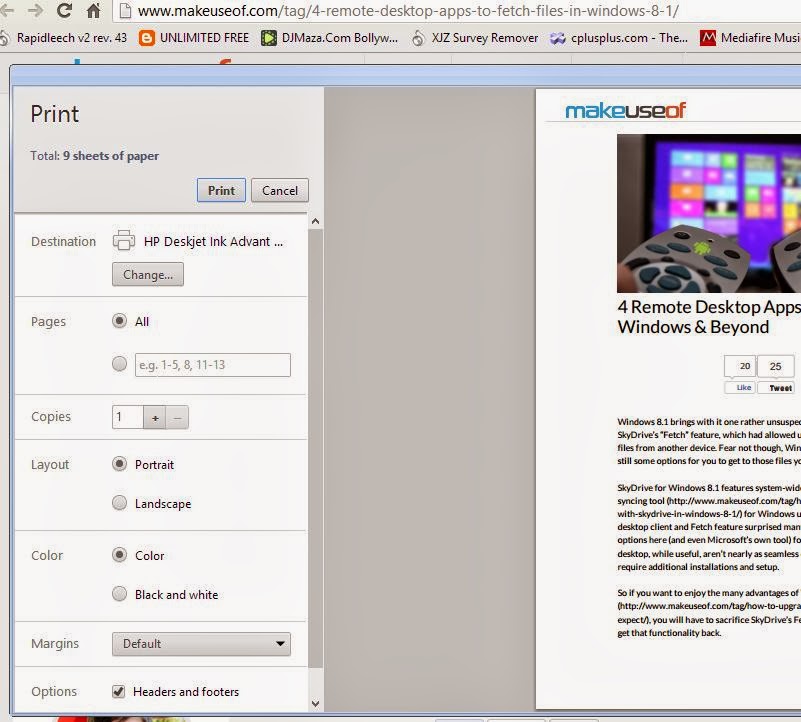
- Now you need to change the Destination and select save as pdf.

- After this, click on Save and whole of the webpage will be saved as pdf.Now You can read it or print it offline.
Tag :
Google crome


